

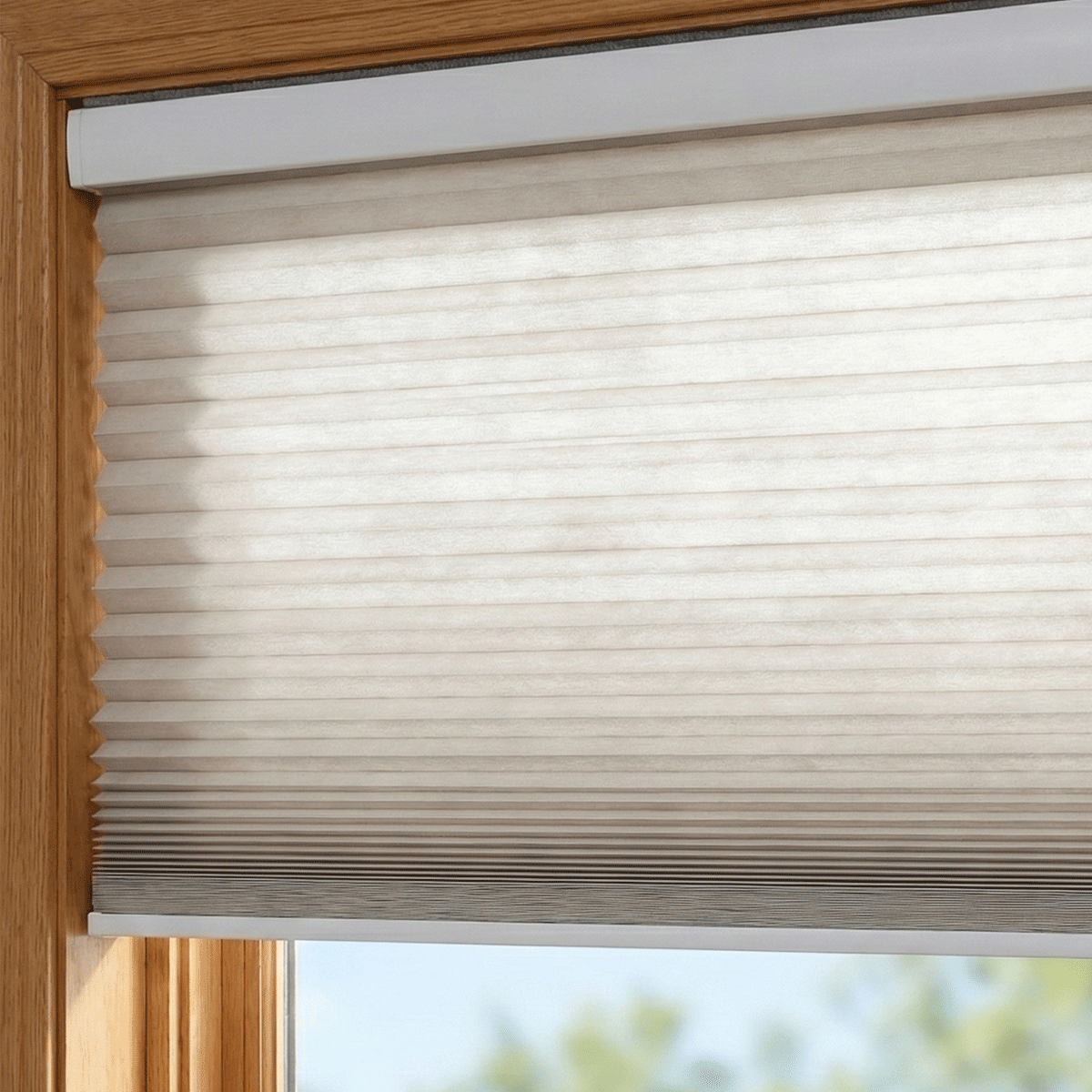


How to Add Weffort Roller Shades to Home Assistant, Step by Step
on Oct 16 2026
Quick Answer: Adding a Weffort roller shade to Home Assistant takes one integration and one pairing session per shade, and the integration follows the motor version you ordered. A Matter-over-Thread motor joins through Home Assistant’s Matter integration and a Thread border router; a Zigbee motor joins through ZHA and a Zigbee coordinator; a Z-Wave motor joins through the Z-Wave integration and a Z-Wave controller[1][2]. Home Assistant notes that Matter commissioning may take a few minutes[2]. In an independent review of Weffort Matter-over-Thread shades, the motor had to be woken with a single press of its pairing button before the code was scanned, after which Home Assistant showed a cover entity plus battery percentage, voltage, and firmware sensors[3].
One-line rule: Match the integration to the motor you ordered, wake the motor before you scan, and name each shade by its window before adding the next one.
This guide assumes the shade is already installed and that you know which motor version is on your order. If you are still choosing, our guide to the best roller shades for Home Assistant users covers which motor version fits which existing setup. Here the work starts at the moment the shade is on the wall and Home Assistant is open.

Which Integration Does Your Shade Need?
Weffort offers Matter over Thread, Zigbee, and Z-Wave as separate motor versions, chosen per order[1]. Each one reaches Home Assistant through a different integration and a different piece of radio hardware, so start by reading the motor line on your order confirmation.
| Motor version on your order | Home Assistant integration | Hardware that must already be running | What you pair with |
|---|---|---|---|
| Matter over Thread | Matter, which installs the Matter Server app[2] | A Thread border router on the home network[2] | The Matter QR code or manual code |
| Zigbee | ZHA (Zigbee Home Automation)[4] | A Zigbee coordinator connected to Home Assistant | The motor’s Zigbee pairing state |
| Z-Wave | Z-Wave, through the Z-Wave JS driver[5] | A Z-Wave controller connected to Home Assistant | The motor’s Z-Wave inclusion state |
A Thread border router can be a dedicated device or a role built into hardware you already own; Home Assistant’s own OpenThread Border Router app is one option[2]. Our explainer on what a Thread border router does covers the role itself.
What Should Be Ready Before You Start?
A pairing session goes smoothly when the shade and the network are both ready before you open the integration. Work through this list first:
- Home Assistant updated and backed up, with the integration for your motor version installed.
- The radio hardware online: the Thread border router, Zigbee coordinator, or Z-Wave controller.
- The Home Assistant Companion app on your phone for Matter pairing; Home Assistant’s documentation lists iOS 16 or later, or Android 8.1 or later with version 12 or later recommended[2].
- The shade fully charged. WIRED’s buying advice is to charge a shade’s battery fully before installation[6].
- Travel limits set with the remote. In the SmartHomeScene review, the remote was required to adjust the limits, and the shades arrived pre-calibrated from the factory[3].
- The setup code photographed. The same review found the Matter QR code attached at one end of the shade and printed on the enclosure[3].
The SmartHomeScene units were Roman-style shades on Weffort’s Matter-over-Thread motor, so read its observations as context on the motor and its pairing behavior. Mighty Gadget’s review covers a Weffort roller shade connected to Home Assistant over Matter[7].
How Do You Add a Matter-over-Thread Shade?
Home Assistant pairs Matter devices through the Companion app on your phone, which uses the phone’s Bluetooth to reach the device[2]. Stand within close range of both the shade and the border router while you do this, as Home Assistant’s documentation recommends[2].
- In Home Assistant, go to Settings > Devices & services and add the Matter integration if it is not already installed. On Home Assistant OS, this installs the official Matter Server app[2].
- Wake the motor. On the reviewed configuration, a single press of the pairing button woke the motor for commissioning[3]; Mighty Gadget’s reviewer used a button sequence on the remote instead[7]. Follow the quick set-up guide for your motor[8].
- Open the Companion app and go to Settings > Connectivity > Matter, then select Add device[2].
- When asked whether the device is already in use, choose No. It’s new.[2]
- Scan the shade’s QR code, or choose the option to enter the code manually[2].
- Select Add to Home Assistant and wait while commissioning completes[2].
- In the Device added dialog, give the shade its window name and assign it to an area, then select Finish[2].
Use the room label from your order as the area, and a window position as the name: “Bedroom east” is easier to automate later than a model name. Add one shade completely before starting the next.
How Do You Add a Zigbee or Z-Wave Shade?
The Zigbee and Z-Wave paths are shorter, because Home Assistant talks to the shade directly through its own coordinator or controller.
For a Zigbee motor, open the ZHA integration in Settings > Devices & services, start adding a device, and then put the motor into its pairing state using the motor’s quick set-up guide[4][8]. ZHA forms a single Zigbee network through your coordinator and adds most Zigbee devices to it[4].
For a Z-Wave motor, open the Z-Wave integration, start adding a device, and follow the motor’s inclusion steps[5][8]. The Z-Wave integration controls the network through the Z-Wave JS driver[5].
In both cases, name the entity by window and assign the area as soon as it appears. If a previous attempt left a stale device record, remove it before trying again so the new pairing starts clean.
What Will You See in Home Assistant After Pairing?
The shade appears as a cover entity. Home Assistant reports a cover’s state as opening, open, closing, or closed, and the cover controls handle open, close, stop, and position[9].
| What appears | What it tells you | Source |
|---|---|---|
| Cover entity | Open, close, stop, and position control | [9] |
| Battery percentage | Charge level of the built-in battery | Reviewed Weffort configuration[3] |
| Voltage | Battery voltage, useful for spotting a weak charge | [3][7] |
| Firmware version | The motor’s current firmware | [3] |
| Device type in Matter device info | “Sleepy end device” for battery Thread devices | [2] |
Home Assistant describes a sleepy end device as a battery-powered device that normally sleeps and wakes on occasion to check for messages[2]. That design explains a short pause before the motor moves. SmartHomeScene measured it at around half a second or less, and found that Home Assistant mirrored the shade’s state whether it was moved from Home Assistant or from the 433 MHz remote[3].
How Should You Test It Before Building Automations?
Run each check once, from Home Assistant and from the remote, before you rely on the shade in a schedule.
- Open and close fully from the Home Assistant dashboard, and confirm the state changes to open and closed.
- Set the position to 25%, 50%, and 75%, and check that the fabric stops close to each point.
- Move the shade with the remote, then confirm the new state appears in Home Assistant.
- Trigger a group action if several shades share a room, and watch that each one responds.
- Run your first automation manually once before you schedule it.
Plan your control paths around one confirmed behavior. Weffort’s R&D team confirms that, for the current Matter-over-Thread motor, phone control is unavailable when the home’s internet connection is down, whether you are at home or away; when the connection is working, phone control is available both at home and remotely. Keep the remote or a wall switch in each room as the control for those moments.
What Should You Check When Pairing Fails?
| Symptom | First check | Next step |
|---|---|---|
| The app never finds the shade | Motor awake, phone close to the shade and border router | Wake the motor again and retry from step 2[2][3] |
| Thread does not appear in Home Assistant | Border router powered and on the same network | The Thread integration appears automatically once Home Assistant detects a border router[10] |
| The QR code will not scan | Lighting and code condition | Use your photo, or the code printed on the enclosure[3] |
| Commissioning fails partway | Motor version on the order | A Zigbee or Z-Wave motor pairs through ZHA or the Z-Wave integration with its own radio |
| The entity shows as unavailable | Battery level and distance to the mesh | Charge the shade; add a mains-powered Thread device nearer the window if coverage is thin |
| The shade stops short of open or closed | Travel limits | Reset the limits with the remote at the installed position[3] |
Most failures trace back to the motor being asleep, the radio hardware being offline, or a protocol mismatch between the motor and the integration. Check those three before suspecting the shade.
How Do You Keep It Running?
Use the battery sensor. A simple automation that sends a notification when the battery drops to around 20% turns charging into a planned job. The Weffort battery motor is charged over USB-C and rated for 4 to 6 months per charge in normal use[11]. Mighty Gadget’s reviewer reported a full USB-C charge taking 6 to 7 hours and used a power bank for a shade far from an outlet[7].
A solar panel, offered when the battery motor is selected, lowers how often a manual charge is needed; keep the USB-C route reachable as the backup. Check the firmware sensor after any update, and keep a Home Assistant backup from the day the shade first worked so you can compare later.
FAQ
Do Weffort roller shades work with Home Assistant?
Yes, when the motor version matches your Home Assistant setup. Independent reviewers have connected Weffort Matter-over-Thread shades to Home Assistant, and Weffort also offers Zigbee and Z-Wave motor versions[3][7][1].
Do I need a Thread border router?
For a Matter-over-Thread motor, yes. Home Assistant requires a Thread border router on the home network for Thread-based Matter devices, and its OpenThread Border Router app can fill that role with supported hardware[2]. Zigbee and Z-Wave motors use their own coordinator or controller.
Why is there a short delay before the shade moves?
Battery-powered Thread shades are sleepy end devices: they sleep and wake periodically to check for commands[2]. One review measured the delay at around half a second or less[3].
Can I see the battery level in Home Assistant?
Yes, on the reviewed configurations. Home Assistant showed battery percentage and voltage sensors for the shade, which you can use to trigger a low-battery notification[3][7].
Will the remote still work after the shade is in Home Assistant?
Yes. On the reviewed configuration, Home Assistant mirrored the shade’s state whether it was moved from Home Assistant or from the 433 MHz remote[3].
What happens if the internet goes down?
For the current Matter-over-Thread motor, Weffort’s R&D team confirms that phone control is unavailable while the home’s internet connection is down. Use the remote or a wall switch until the connection returns.
Bottom Line
Home Assistant setup follows the motor line on your order. A Matter-over-Thread shade joins through the Matter integration, the Companion app, and a Thread border router; a Zigbee shade joins through ZHA; a Z-Wave shade joins through the Z-Wave integration. Wake the motor before you scan, name the entity by window, and finish one shade before starting the next.
Once paired, the shade behaves like any other cover entity, with battery and voltage sensors that make charging predictable. Test every control path once, keep the remote or a wall switch in each room for the moments the network is unavailable, and build automations only after the basic commands work the same way every time.
References
- [1] Smart Technology — Weffort — Matter over Thread, Zigbee, and Z-Wave offered as motor versions by configuration. ↩
- [2] Matter — Home Assistant — Matter Server app, Thread border router requirement, Companion app requirements and Add device steps, commissioning time, area and naming dialog, and the sleepy end device definition. ↩
- [3] Weffort Smart Shades with Thread Review — SmartHomeScene — independent review of Weffort Roman-style shades on the Matter-over-Thread motor in Home Assistant, covering the pairing-button wake step, QR-code placement, factory pre-calibration, remote-based limit adjustment, the entities exposed, command delay, and state mirroring from the 433 MHz remote. ↩
- [4] Zigbee Home Automation (ZHA) — Home Assistant — ZHA as a Zigbee gateway implementation that forms a single Zigbee network through a coordinator. ↩
- [5] Z-Wave — Home Assistant — the Z-Wave integration and its control of a Z-Wave network through the Z-Wave JS driver. ↩
- [6] The Best Smart Shades, Blinds, and Curtains — WIRED — buying advice to fully charge a shade’s battery before installation. ↩
- [7] Weffort Smart Motorised Shades Review — Mighty Gadget — independent review of a Weffort roller shade connected to Home Assistant over Matter, including pairing through a remote button sequence, battery and voltage diagnostics, USB-C charging time, and power-bank use. ↩
- [8] Instruction Guide Tour — Weffort — quick installation, quick set-up, and remote-programming guides. ↩
- [9] Cover — Home Assistant — cover entity states and control for roller shades, blinds, and other covers. ↩
- [10] Thread — Home Assistant — the Thread integration appearing automatically when Home Assistant detects a border router. ↩
- [11] How to Choose — Weffort — built-in lithium-ion battery motor with USB-C charging and a stated 4 to 6 months per charge. ↩
Share