



Smart Home for Beginners: What to Buy First and How to Set It Up
on Nov 11 2026
Quick Answer: Start a smart home by choosing one ecosystem (Apple Home, Google Home, Amazon Alexa or Home Assistant), buying devices that support it (ideally Matter-certified), and adding two or three devices that fix a daily annoyance: smart plugs, smart bulbs, a smart thermostat or motorized shades. Set up one room at a time, name devices clearly, build one simple automation, and lock down your accounts before you expand.
A smart home is not a single product. It is a set of connected devices, an app that ties them together, and automations that run without you thinking about them. Now that the industry has settled on common standards, starting is cheaper and less risky than it was a few years ago. This guide covers the whole beginner journey in order: ecosystem, wireless jargon, first devices, setup, automations, and privacy and security.
What Does a Smart Home Actually Do?
Every smart home device does some combination of three things:
- Remote control: operate it from your phone, a voice assistant or a remote instead of a switch or cord.
- Scheduling: run at set times, such as lights on at sunset or the thermostat dropping at 10 p.m.
- Automation: react to something that happens, such as a door unlocking, motion in a hallway or the sun hitting a west window, and trigger other devices in response.
Voice control gets the attention, but scheduling and automation deliver the real value: a thermostat that adjusts itself or shades that close before the afternoon sun hits save effort every day.
Step 1: Choose Your Smart Home Ecosystem
Your ecosystem is the "home base": the app where all your devices show up and automations live. Picking one first prevents the most common beginner mistake, ending up with five apps that don't talk to each other.
| Ecosystem | Best for | Hub you'll need | Strengths | Trade-offs |
|---|---|---|---|---|
| Apple Home | iPhone households | HomePod, HomePod mini or Apple TV (acts as home hub and Thread border router) | Clean app, strong privacy stance, Siri on every Apple device, solid Matter and Thread support | Requires an iPhone or iPad to set up; Android users are left out |
| Google Home | Android users, Google account households | Nest Hub or Nest speaker (many double as Matter hubs and Thread border routers) | Good natural-language voice control, easy routines, cross-platform app | Hardware lineup changes often; some features depend on the cloud |
| Amazon Alexa | Budget starters, widest device selection | Echo speaker or Echo Show (some models include Zigbee, Thread and Matter radios) | Huge device compatibility, inexpensive speakers, flexible routines | App can feel cluttered; frequent shopping prompts |
| Home Assistant | Tinkerers who want local control | A small always-on computer (dedicated box or Raspberry Pi) plus optional Zigbee/Z-Wave/Thread radio | Free, open source, runs locally, supports thousands of integrations | Steeper learning curve; you maintain it yourself |
Rule of thumb: pick the ecosystem that matches the phone most people in your home use. If the household is mixed, Google Home or Alexa is the easier common ground. If you enjoy tinkering and want everything to keep working when the internet goes down, Home Assistant is worth the learning curve, and it can still pass devices to Siri, Alexa or Google Assistant for voice control.

Matter, Thread, Wi-Fi and Zigbee in Plain English
The jargon on smart home boxes is the biggest hurdle for beginners. Here is what each term means.
- Matter is a shared language for smart home devices, developed by the Connectivity Standards Alliance. A Matter-certified device works with Apple Home, Google Home, Amazon Alexa, Samsung SmartThings and Home Assistant, and newer versions improve "multi-admin," which lets one device be controlled from more than one ecosystem at once[1]. For beginners, the Matter logo is the single best guarantee you won't be locked in.
- Thread is a low-power wireless network that many Matter devices use. It is built on IEEE 802.15.4 radio technology, is IPv6-based and builds security into the network layer[2]. Plugged-in Thread devices relay signals for each other (a mesh), so the network gets stronger as you add devices. You need one Thread border router, which is usually a smart speaker, display or streaming box you already own.
- Wi-Fi devices connect straight to your router. They are simple to set up but use more power, so they suit plugged-in devices like cameras and plugs better than battery devices. Most smart home gadgets only use the 2.4 GHz band.
- Zigbee is an older, proven low-power mesh network popular for sensors, bulbs and shades. It needs a Zigbee hub, which some Echo models and most Home Assistant setups include.
- Z-Wave works like Zigbee but on a lower frequency (908 MHz in the US), which helps signals pass through walls. It needs a Z-Wave hub or USB stick.
Do You Need a Smart Home Hub?
Often you already have one. A HomePod mini, Apple TV, Nest Hub or Echo can serve as your ecosystem's home hub and, depending on the model, as a Thread border router, Matter controller or Zigbee hub. Check the specs of what you own before buying anything extra.
You will want a dedicated hub or bridge in three situations:
- Your devices use a protocol your speaker lacks, such as Z-Wave, or a brand's own radio.
- You want automations to run locally and keep working during an internet outage. Home Assistant and Hubitat-style hubs are built for this.
- You have many devices of one type, such as motorized shades across a whole floor, where a brand bridge gives you group control, schedules and more reliable range.
Best Smart Home Devices for Beginners: What to Buy First
Buy devices that solve a problem you have every day. Together, the first few make a solid smart home starter kit; this ranking balances cost, ease of installation and how much you'll notice the difference.
- A smart speaker or display. It is your voice remote and, often, your hub. If you already own one, skip ahead.
- Smart plugs. The easiest entry point: plug in a lamp, fan or coffee maker and put it on a schedule. Check the plug's rating (commonly 15 amps) and avoid using smart plugs with space heaters or other high-draw appliances unless the plug's manufacturer specifically allows it.
- Smart bulbs or smart switches. Bulbs are renter-friendly and offer color and dimming. Switches are better if several bulbs share one fixture or if family members tend to flip the wall switch off. Many smart switches need a neutral wire, so check your wall box first.
- A smart thermostat. Heating and cooling make up almost half of a typical home's annual energy bill, more than $900 a year, and ENERGY STAR certifies smart thermostats based on real field data showing energy savings[4]. Confirm compatibility with your HVAC system and whether you have a C-wire before buying.
- Motorized shades. Windows are where you fight heat, glare and privacy several times a day, so automating them is an upgrade you notice immediately. More on this below.
- A video doorbell or smart lock. Useful for packages and guests, but these touch your home's security, so set them up only after you've completed the security basics later in this guide. Choose a lock that keeps a physical key or keypad backup.
- Sensors. Motion, contact (door/window) and leak sensors are inexpensive and are what turn simple schedules into true automations.
| Device | Install difficulty | Daily problem it solves | Beginner tip |
|---|---|---|---|
| Smart plug | Very easy (plug in) | Lamps and small appliances on a schedule | Buy a Matter-certified plug so it works with any ecosystem |
| Smart bulb | Very easy (screw in) | Dimming, wake-up light, away-mode lighting | Leave the wall switch on, or add a smart button |
| Smart thermostat | Moderate (low-voltage wiring) | Heating and cooling when you're asleep or away | Photograph your old wiring before removing it |
| Motorized shades | Moderate (mounting brackets) | Glare, heat, privacy and early wake-ups | Measure carefully and choose the motor connection that matches your ecosystem |
| Smart lock | Moderate (replaces deadbolt) | Keys, guest access, "did I lock it?" | Keep fresh batteries and a backup entry method |
| Sensors | Easy (adhesive) | Triggers for automations, leak alerts | Start with a leak sensor under the water heater |
How to Set Up a Smart Home, Step by Step
- Check your Wi-Fi where devices will live; a mesh system fixes dead zones.
- Set up your hub or speaker first. Install the ecosystem app, sign in with the account you'll keep long term, and turn on two-factor authentication immediately.
- Create your home and rooms. Room assignments are what make commands like "turn off the bedroom" work.
- Add one device at a time. For Matter devices, scan the QR code on the device or box in your ecosystem app. Keep the code: photograph it or store it, since you'll need it to reset or move the device.
- Name devices clearly. Use "Room + Thing," such as "Living Room Lamp" or "Bedroom Shade." Avoid names that sound alike, which confuse voice assistants.
- Group and test. Group related devices (all living room shades, all downstairs lights), then test by app, voice and any physical remote or switch.
- Build one automation. Start simple (see below), run it for a week, then adjust.
- Update firmware. Install pending updates and turn on automatic updates where available.
- Add the next room. Expand only after the first room has run reliably for a week or two.
Your First Smart Home Automations
Every automation has the same three parts: a trigger (time, sunrise/sunset, a sensor, someone arriving), an optional condition (only on weekdays, only if nobody's home) and an action (devices do something). Good starter automations:
- Good Morning: at 6:45 a.m. on weekdays, open bedroom shades halfway, turn on the kitchen lights and raise the thermostat two degrees.
- Afternoon heat block: at 2 p.m. from June through September, lower the shades on west- and south-facing windows.
- Sunset privacy: 15 minutes after sunset, close street-facing shades and turn on porch and living room lamps.
- Away mode: when the last phone leaves home, turn off lights and plugs and set the thermostat back.
- Good Night: one voice command or button press closes every shade, locks the front door and turns off the downstairs lights.
Use sunrise and sunset triggers instead of fixed clock times when you can; they adjust automatically through the seasons.

Smart Home Privacy and Security Basics
Every connected device is a small computer on your network. A NIST cybersecurity researcher's smart home checklist comes down to these habits[3]:
- Research before you buy: check a brand's security track record and agree as a household on cameras and microphones.
- Use multi-factor authentication on your ecosystem and device accounts.
- Never reuse passwords; a password manager makes this painless.
- Turn off features you don't use, such as remote access on a device you only control at home.
- Review privacy settings, including how long voice recordings and camera clips are stored.
- Turn on automatic updates, and replace devices that no longer receive security fixes.
- Segment your network with a separate Wi-Fi network for smart devices.
Why Motorized Shades Are a High-Impact First Upgrade
Most beginner devices automate something you could already do with a switch. Shades control sunlight, heat, glare and privacy, and most people either adjust them by hand several times a day or leave them in one position. Motorizing them changes how the room feels.
- Comfort and energy: closing shades before the sun heats a room, and at night in winter, reduces the heating and cooling load from your windows. Pacific Northwest National Laboratory tested automated cellular shades coordinated with thermostats in its Lab Homes and concluded that dynamically operated shades can dramatically reduce the heating and cooling energy associated with windows[5].
- Better sleep and mornings: blackout shades keep a bedroom dark, and a sunrise schedule opens them gradually when you want to wake.
- Privacy on autopilot: street-facing shades close at sunset whether or not you're home, which also makes the house look lived-in while you're away.
- Cordless safety: no dangling cords for children and pets.
The trade-off is cost: custom shades cost more than a plug or bulb and must be measured correctly. Start with the one or two rooms where sun or privacy bothers you most.

Where Motorized Shades Fit In: Our Picks
Weffort makes custom motorized shades with several ways to connect, so the right pick depends on the ecosystem you chose in Step 1. According to Weffort's smart home compatibility page, its shades can connect to Apple Home over Thread using a HomePod (2nd Gen), HomePod mini or Apple TV 4K; to Google Home through Matter and Thread; to Alexa through Echo models with a built-in Zigbee hub; and to Home Assistant, SmartThings, Hubitat and Homey with Matter, Zigbee or Z-Wave motors. Here is how that maps to real needs:
| If you want… | Consider | Why it fits | Trade-off |
|---|---|---|---|
| A first shade that works with Apple, Google or Alexa | Texture Series motorized blackout roller shades | Remote, wall switch or voice control through Alexa, Google Assistant or Apple HomeKit, with schedules and group control of multiple shades | Blackout is ideal for bedrooms and media rooms; living spaces may suit a light filtering fabric better |
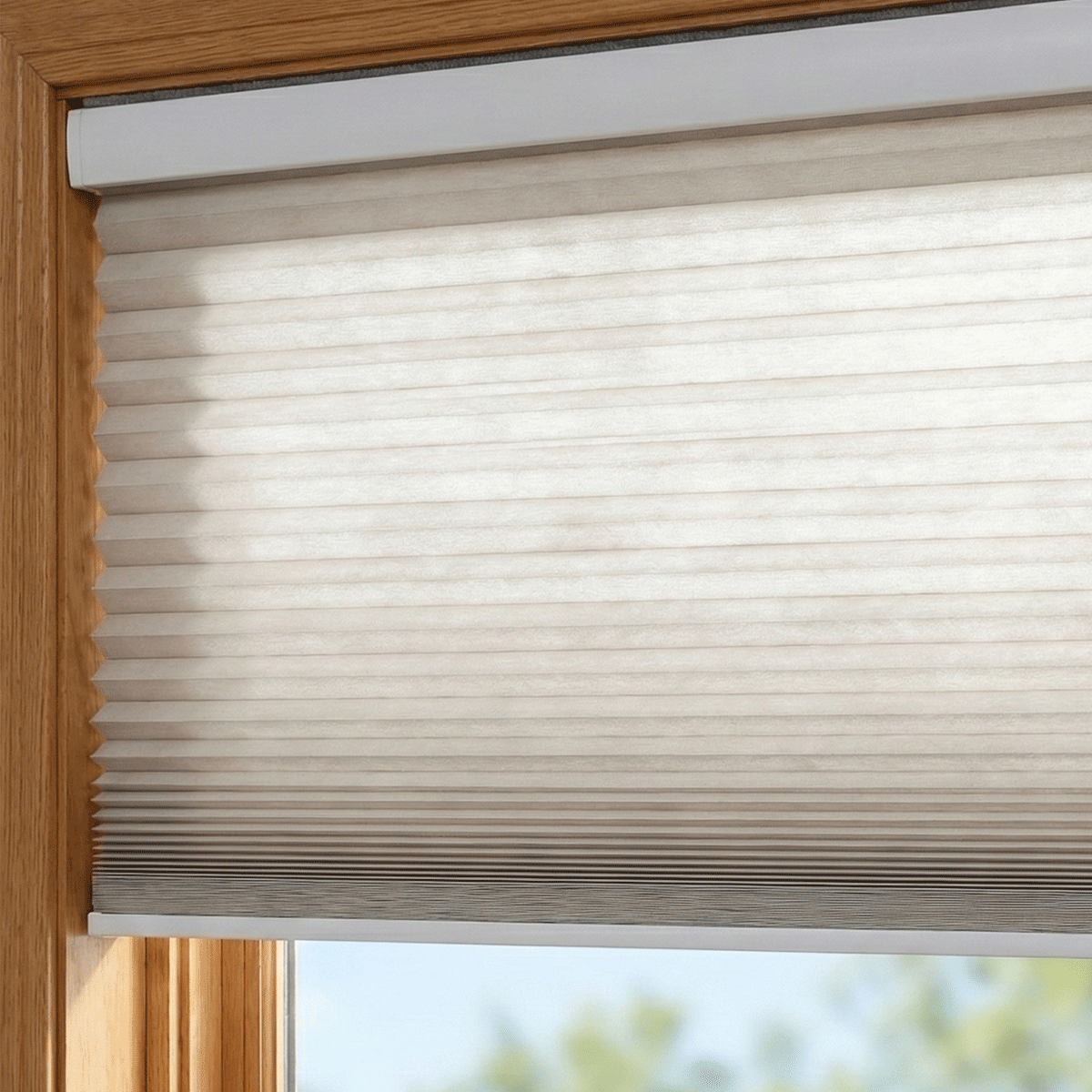
| A dark bedroom with an insulating layer | Elegant Series motorized blackout cellular shades | Honeycomb cells trap air for insulation and the opaque fabric blocks nearly all light; controllable by remote, wall switch or voice | Pleated look is softer than a flat roller; slight light gaps at the edges unless you add blockers |
| App and voice control for several shades from one bridge | Weffort Smart Hub | Connects up to 20 compatible shades to Alexa, Google Home, Smart Life, SmartThings and IFTTT, using Sub-GHz radio that avoids 2.4 GHz Wi-Fi interference | One more device to plug in; check that your shade's motor is listed as compatible |
| A larger home or a pro-installed system | Weffort Smart Hub Pro | Wi-Fi or Ethernet connection, schedules in the Connector app, and integration with Alexa, Google Assistant, SmartThings, IFTTT, Control4, Crestron Home, RTI and ELAN; add units to cover more floors | More than a beginner needs for one or two rooms |
Weffort's multi-channel remote (1, 5, 9 or 15 channels) is handy for guests and family members who don't use the app. Browse the remotes, bridges, solar panels and chargers in the shade accessories collection. If you're comparing fabrics and styles, the motorized roller shades buying guide covers openness, blackout and mounting choices, and single vs double cell cellular shades explains when the extra insulation is worth it. Before ordering, follow the roller shade measuring guide; most "my shade doesn't fit" problems start with a rushed measurement.

Common Beginner Mistakes to Avoid
- Mixing ecosystems early. Pick one app as your home base. Matter makes it possible to add a second ecosystem later, but don't start there.
- Buying devices before checking the hub. A Thread or Zigbee device is useless without a border router or hub that speaks its language.
- Turning off smart bulbs at the wall. A switched-off bulb is offline. Use smart switches or cover the switch with a smart button.
Frequently Asked Questions
What is the easiest smart home system for beginners?
The easiest system is the one that matches your phone: Apple Home for iPhone households, Google Home for Android households, and Alexa if you want the widest range of budget devices. All three now support Matter, so devices you buy with the Matter logo will keep working if you switch later. Home Assistant is the most powerful option but has the steepest learning curve.
What smart home device should I buy first?
If you don't own a smart speaker or display, start there; it often doubles as your hub. Then add a device that fixes a daily annoyance: smart plugs for lamps, a smart thermostat, or motorized shades if glare, heat or privacy bother you every day.
Do I need Wi-Fi for a smart home?
Yes, for setup, control away from home and voice assistants. Thread, Zigbee and Z-Wave devices don't join Wi-Fi directly, but their hub does. With a local platform such as Home Assistant, many automations keep running during an internet outage.
Is Matter better than Zigbee or Z-Wave?
Not better in every way, but more flexible for beginners. Matter works across Apple Home, Google Home, Alexa, SmartThings and Home Assistant, so you're not locked in. Zigbee and Z-Wave are mature and reliable but tie you to a compatible hub.
Can renters set up a smart home?
Yes. Smart plugs, bulbs, battery sensors and speakers need no wiring, and no-drill shade options exist for renters who can't put holes in the frame. Keep the original thermostat and lock to reinstall when you move out.
Are smart homes safe from hackers?
No connected device is risk-free, but unique passwords, multi-factor authentication, automatic updates, a separate network for smart devices and turning off unused features reduce the risk considerably. Buy from brands that publish regular security updates.
Start With the Windows You Look at Most
A good smart home grows one useful automation at a time. Choose your ecosystem, add a plug or thermostat, then automate the window that bothers you most, whether that's a sun-baked living room or a bedroom that gets bright at 5 a.m. Explore motorized roller shades or motorized cellular shades made to your window's exact size, and order fabric samples to see the colors and opacity in your own light before you commit.
Sources
- Matter (Connectivity Standards Alliance)
- What Is Thread? (Thread Group)
- 7 Tips to Keep Your Smart Home Safer and More Private (National Institute of Standards and Technology)
- Smart Thermostats (ENERGY STAR, U.S. EPA)
- Completing the Connected Home with Smart Window Shades (Pacific Northwest National Laboratory)
Share